Модуль 1 · Урок 6 из 12 бесплатных уроков
Русская клавиатура
The standard QWERTY keyboard, with its 26 letters, cannot accommodate the 33 letters of the Russian alphabet. To address this discrepancy, the Russian layout assigns non-letter keys to the additional seven letters.
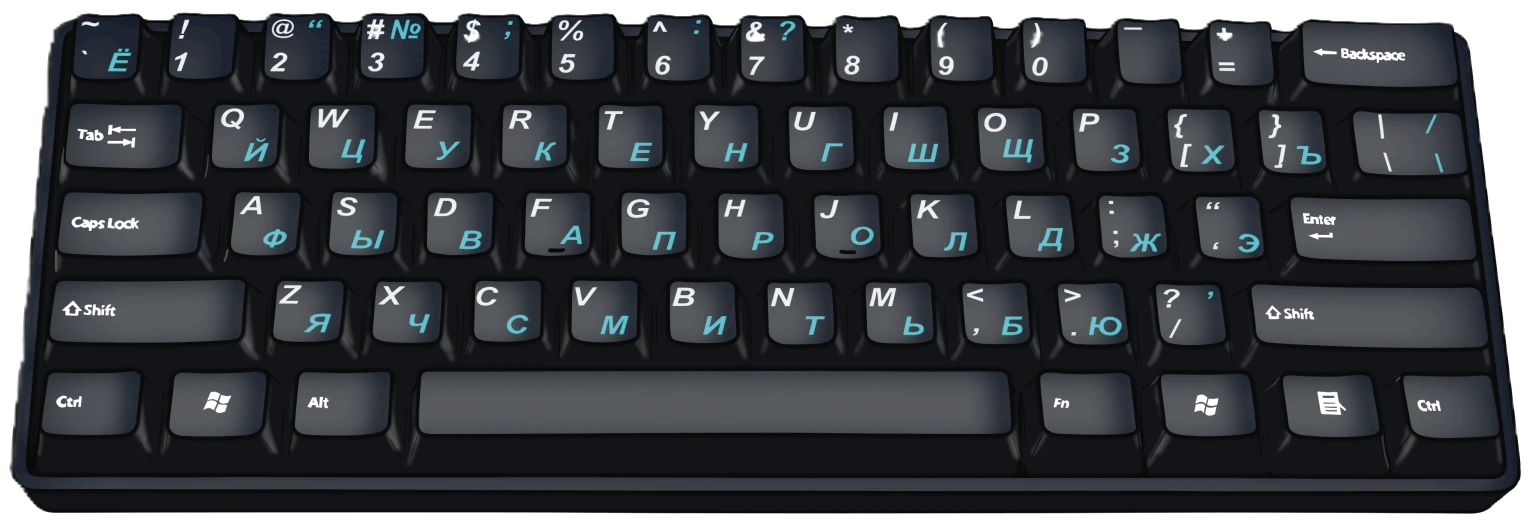
The standard Russian (ЙЦУКЕН) keyboard layout
The standard Russian (or Cyrillic) typewriter and keyboard layout is called ЙЦУКЕН or ФЫВА (named after the sequences of Russian letters in the top or the second row). An alternative layout is the transliterated or phonetic keyboard. It uses the similarity between the shapes of English and Russian letters (e.g., W – Ш or Q – Я).
ЙЦУКЕН vs. the phonetic (transliterated) layout — which should you use?
- Best for
- ЙЦУКЕН: Typing on shared/Russian computers
- Phonetic: Learning to type quickly as an English speaker
- Letter logic
- ЙЦУКЕН: Fixed historical layout, unrelated to Latin letters
- Phonetic: Matches similar-sounding/looking letters (W → Ш, Q → Я)
- Availability
- ЙЦУКЕН: Built into every OS by default
- Phonetic: Usually needs a third-party layout or app
- Downside
- ЙЦУКЕН: Steeper learning curve
- Phonetic: Hard to type on a Russian keyboard that isn't yours
Our recommendation: learn ЙЦУКЕН if you'll ever use a Russian-language computer, keyboard, or type on someone else's device. Use the phonetic layout if you're typing exclusively on your own device and want the fastest possible start.
The standard Russian keyboard uses the following non-letter keys of the QWERTY layout to make up for the missing seven letters:
How to switch to Russian keyboard
On Windows
- Open Settings → Time & Language → Language
- Click Add a Language
- Select Russian and choose the layout you prefer
How to type in Russian on Mac
- Open System Settings → Keyboard → Input Sources
- Click the + button
- Search for and select Russian
- Choose the standard layout or Russian – PC (closer to ЙЦУКЕН if you're used to Windows)
- Switch languages using the Globe key (or Ctrl+Space, depending on your settings)
How to type in Russian on Android
- Open Settings → System → Languages & input → On-screen keyboard
- Select your keyboard app (e.g., Gboard)
- Tap Languages → Add keyboard
- Search for and select Russian
- Switch keyboards by swiping the spacebar, or tapping the globe icon
How to type in Russian on iPhone/iPad
- Open Settings → General → Keyboard → Keyboards
- Tap Add New Keyboard...
- Select Russian
- Switch keyboards by tapping the globe icon while typing
If you choose to install a mnemonic Russian keyboard layout, also called ‘transliterated’ or 'phonetic', keep in mind that there are a few varieties of this layout. There might be a slight difference in the key assignments depending on the software used for the layout.
It may be helpful to buy Russian keyboard stickers and place them on your computer keyboard.
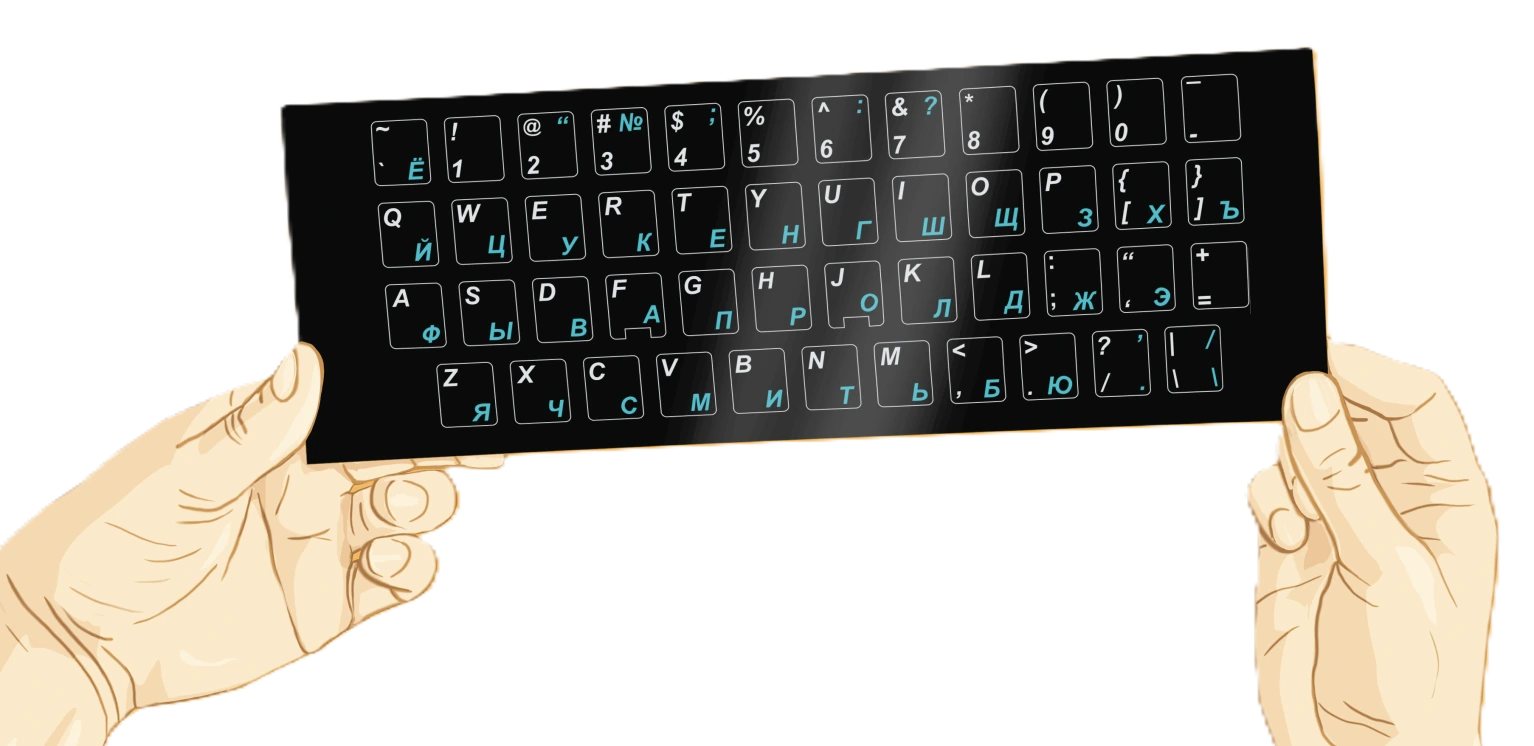
When choosing stickers, pay attention to whether they are transparent or not.
Each non-transparent sticker contains two letters—a Latin and a Cyrillic one — corresponding to the standard keyboard layout. Since they cover the entire key, non-transparent stickers are suitable only for the standard layout (ЙЦУКЕН).
In contrast, transparent stickers typically display only Cyrillic letters, allowing them to be placed on any key without obscuring the original letter. This makes them compatible with any layout you want to create.
If you choose transparent stickers, pay attention to the brightness of the letters. If the letters are not sufficiently bright — for instance, if their color is pale yellow — they may be difficult to see on the keys.
This is Lesson 6 of 12 free lessons
Now that you can type in Russian — ready to learn the alphabet?
This keyboard lesson is part of a free, structured course that takes you from zero to reading and speaking basic Russian.